 Traktor Bridge
Install
Windows, installer (64-bit)
- Download
TraktorBridge-3.5.2-setup.exefrom the releases page. - Run it. It installs for your user only, with no admin rights, a Start menu entry and an optional desktop icon.
Windows, portable (64-bit)
- Download
Portable_TraktorBridge-3.5.2-win64.zipfrom the releases page. - Unzip it anywhere: desktop, another drive, a USB stick. No installer, no admin rights.
- Run
TraktorBridge.exe.
Settings (traktor_bridge.json) and the log (traktor_bridge.log) are
written next to the program. The folder can move between computers with its settings.
Windows may warn about an unsigned program the first time, with either build: More info, then Run anyway.
From source (Windows, macOS, Linux)
git clone https://github.com/bsm3d/Traktor-Bridge.git
cd Traktor-Bridge
pip install -r requirements.txt
python main.py
Python 3.11 or newer. macOS and Linux run from source. They have been tested less than Windows.
Your first CDJ key
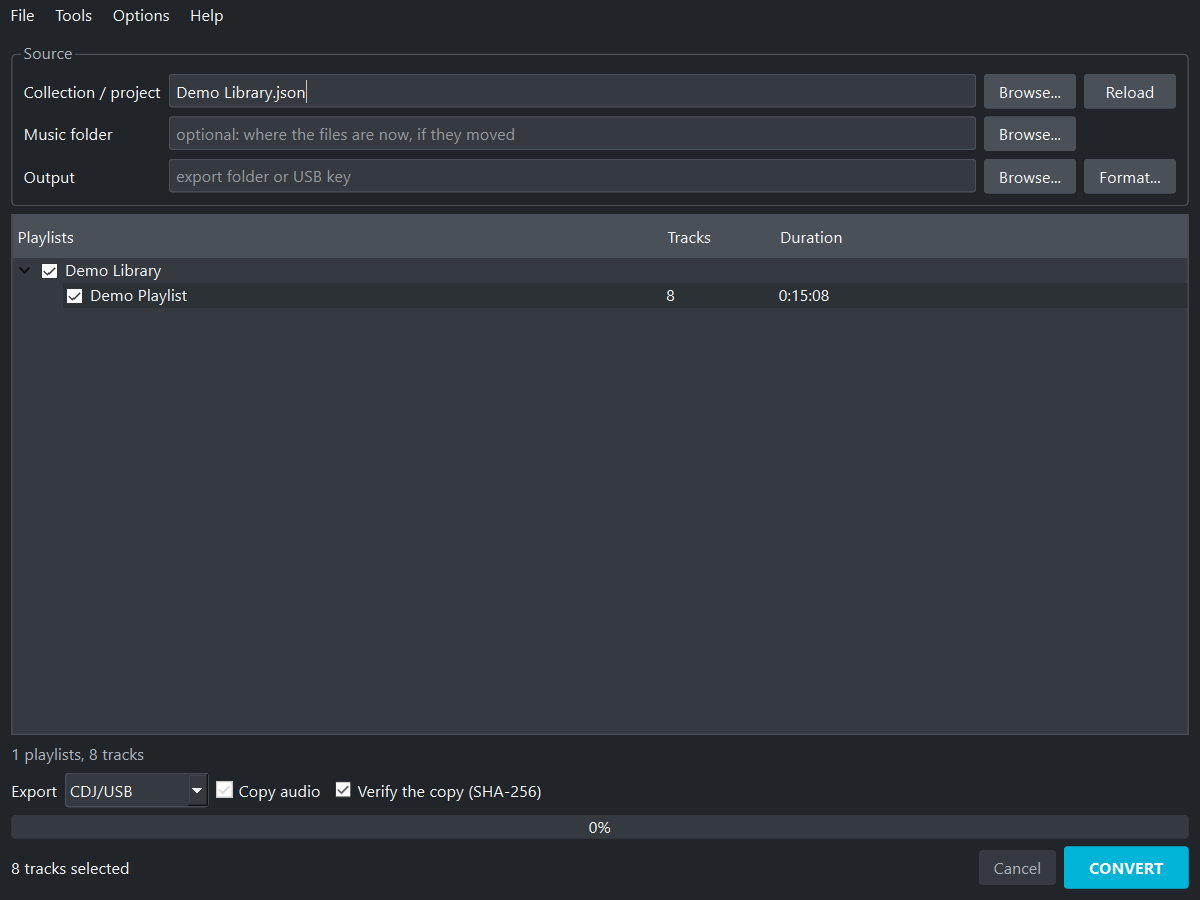
- Plug a USB key. If it is not FAT32 or exFAT, use Format... (see Formatting a key). Nothing else to prepare: no rekordbox, no file to import.
- Ctrl+O and open your collection: Traktor, rekordbox XML, VirtualDJ, Serato,
Mixxx or an M3U playlist (see Collections). For Traktor, Traktor Bridge finds
the newest
collection.nmlon its own the first time. - Tick the playlists you want. Nothing ticked exports everything.
- Export: CDJ/USB. Output: the key itself (
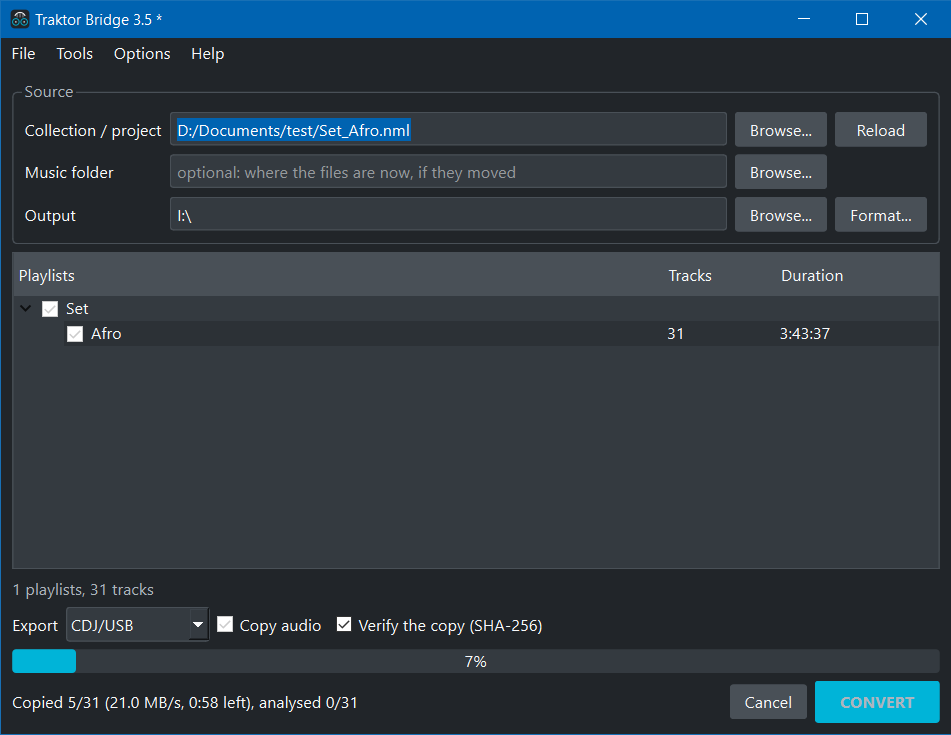
E:\for example). - Convert. The report tells how many tracks went in and lists any missing file.
- Leave Verify the copy ticked: the key is read back and compared to the source.
- Accept the offer to eject the key, plug it into the player, press the USB button.
What it is, and what it is not
Traktor Bridge was designed for users of Traktor, the DJ software from Native Instruments. It is a central hub: the leading DJ programs exchange playlists through it, and with them the hundreds of hours of work it takes to build those playlists.
It imports your collections into Traktor, and it takes your Traktor collection out to the other programs and to Pioneer CDJ players. It is a true Swiss army knife for managing your music.
It is not a competitor of Traktor. It is not a DJ program, it does not mix, and it does not replace any of the programs it connects. It works alongside them.
It also works on its own. It builds playlists from a music library, reorders them and places cues and loops (drag and drop in real time, a precise cue editor, keys A-H). It formats USB keys for the players and copies with checksums.
Collections
| Source | File | Read |
|---|---|---|
| Traktor Pro 3 / 4 | collection.nml or an exported playlist .nml |
tracks, playlists and folders, hot cues, memory cues, loops, grid, key, rating, colour, play count, dates. Smartlists are listed but empty (their query is not run). |
| rekordbox | XML from File > Export Collection in xml format | tracks, playlists, position marks, tempo anchor, colours |
| VirtualDJ | Documents/VirtualDJ/database.xml, or a single .vdjfolder / playlist |
tracks, hot cues 1-8 (A-H), saved loops, beatgrid (classic and fluid), rating, play count. Playlists from Playlists/ and Folders/, the folder tree kept. |
| Serato DJ | Music/_Serato_/database V2 (or _Serato_ at the root of a drive), or a single .crate |
tracks, crates and sub-crates, hot cues with colours and names, saved loops (as memory loops), beatgrid. Cues come from the tags Serato writes in the files: mp3, aiff, wav and flac (not m4a yet). |
| Mixxx | mixxxdb.sqlite |
playlists, crates (in a Crates folder), cues, keys |
| Any player | .m3u / .m3u8 |
the list of files, artist and title from EXTINF |
| A folder of music | File > Open a music folder | each folder becomes a playlist, the folders around it are kept. Title, artist, album, genre, BPM and key come from the tags (mp3, aiff, wav, flac, m4a). No beatgrid yet: detect it with Detect grids, or set the first beat in the cue editor. |
| A CDJ USB key | File > Open a CDJ USB key (Ctrl+Shift+K) | the playlists of a key made by Traktor Bridge or by rekordbox, with their cues and beat grids. Pick the root of the key, or any folder inside it. It never writes to the key. You can look at the playlists, edit them, save a project or export them again. |
A track shared by several playlists is one track. A fix made in one place (a relocation, a cue) shows everywhere.
Moved files
A collection remembers where each file was. If your music moved (new drive, other computer), set the Music folder to where it is now. Every missing track is looked up there, and in its sub-folders, by file name.
After loading, Traktor Bridge offers to pick that folder when files are missing.
Tools > Check collection (Ctrl+K) lists every track with its status. Relocate all missing searches a folder and asks when a name matches several files. Locate selected points one track to a file by hand.
Relocations live in memory. The next export uses them, and your original collection file is never modified.
Export formats
| Format | Writes | Use it for |
|---|---|---|
| CDJ/USB | Contents/, PIONEER/rekordbox/export.pdb, analysis files, artwork | playing on Pioneer players straight from the key |
| Rekordbox XML | rekordbox.xml | importing into rekordbox (Preferences > View > rekordbox xml, then the xml tree) |
| M3U | Playlists/**/*.m3u8 | other players and software, folders kept as sub-folders |
| Traktor NML | collection.nml | bringing a rekordbox or Mixxx collection into Traktor, or a cleaned copy of your own |
Copy audio (XML, M3U, NML) copies the files to Contents/Artist/Album/ in the
output and points the export at the copies. CDJ/USB always copies: the players only read what is on the key.
Verify the copy reads each copy back and compares its SHA-256 with its source's.
A Traktor NML export is a collection Traktor can import, cues and loops included. M3U8 carries neither cues nor beat grids.
CDJ keys
- File system: FAT32 or exFAT. NTFS keys show NO DISK on the players. Traktor Bridge warns when the output is an NTFS drive.
- Where:
ContentsandPIONEERmust be at the root of the key. Pick the key itself as output, or an empty folder whose content you copy to the root. If you pick aContentsorPIONEERfolder, the export moves up to its parent. - Playlists already on the key: when the key already has a database, the window lists its
playlists and asks: Keep them and add this export (the default), Replace everything on the key,
or cancel. A playlist with the same name in the same folder is replaced by the new one and keeps its place,
the others go after the ones on the key. Do not ask again remembers the answer, and
Options > Preferences > Export changes it later. If the database cannot be read, only Replace
or Cancel is offered. Before it is replaced, the database is copied next to the new one as
PIONEER/rekordbox/export.pdb.tb-bak(an earlier copy is overwritten, and it is not part of the checksums). A line next to Output shows how many playlists and tracks the key holds, with an Open this key button. - A key made by rekordbox can also hold
exportExt.pdbandexportLibrary.db. An export writesexport.pdbonly and leaves those two as they are, so the window says so. A player that reads them instead may not show the new playlists: test the key on your player. - Names: tracks go to
Contents/Artist/Album/, each level cut at 48 characters. Accents are kept. Two different songs that would get the same name on the key both stay: the second one is namedname (2). A track whose audio did not reach the key (a full drive, an unreadable file) is left out of the database and named in the errors. - Cues: hot cues carry the colour of their slot. Loops are written as hot loops and memory loops. Hot loops and colours need a CDJ-2000NXS2, a CDJ-3000 or a recent XDJ. Older players show memory loops.
- Speed: analysis runs in parallel with the copy and is cached. Exporting the same tracks again rewrites the database and the analysis files, so a new or moved cue replaces the old one. Files already on the key with the same size are not copied again.
- Copy: on a USB key the audio goes one file at a time, the next one being read while the previous one is written. The progress shows the speed and the time left. A slow key is the limit, a USB 3 key in a USB 3 port is much faster.
- Players: validated on the CDJ-2000NXS2 (loading, browsing, playback, waveforms, beatgrid, cues, artwork). Players that read rekordbox 6 USB exports should read it too, the CDJ-3000 without its HD waveforms.
Formatting a key
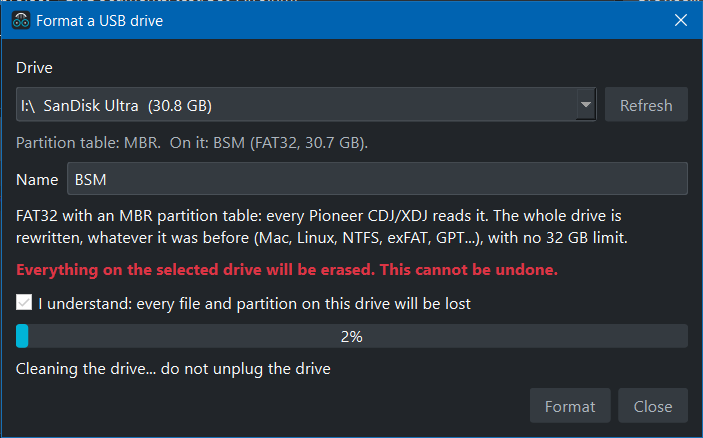
The Format... button next to Output (or Tools > Format a USB drive (FAT32)...) erases a USB key or SD card and formats it as FAT32 with an MBR partition table. That is the layout every CDJ and XDJ reads.
It works whatever the key was before: Mac, Linux, NTFS, exFAT, GPT, more than 32 GB. Only removable drives are listed, never the system disk. Pick the drive, check the label and confirm. Everything on the key is erased.
Windows asks for administrator rights, Linux uses pkexec and macOS diskutil. When the format is done, the program offers to use the key as the Output.
When an export to a removable drive is finished, the program offers to eject it. You can also do it at any time with Tools > Eject the output drive (Ctrl+E). The key is flushed and dismounted, so you can unplug it.
Checking a key
Every export writes traktor_bridge_checksums.json at its root: the size and a
SHA-256 checksum of each file it wrote.
Tools > Verify an export (Ctrl+Shift+V) asks for the key (or the output folder), reads it back and lists anything damaged or missing. A USB key that has been through a few gigs can lose a file without saying so. This is the way to know before the booth. The result shows counts for audio, artwork, Pioneer database and analysis files, and other files. The file names go to the log.
With Verify the copy ticked (it is by default), the check runs right after the export. The files are read from the key itself, not from the system cache, so what is checked is what the player will read. A file that cannot be read counts as damaged.
The end of the export lists the files at fault. Export again to the same place and only the files that differ are written again.
Other safeguards:
- the audio is hashed while it is copied, with no second read;
- files are written under a temporary name and renamed, so a cut never leaves a half-written file;
- the database and analysis files are checked and read back before they are published, even with Verify the copy off;
- tracks already on the key are not copied again. The cues and analysis of a track you export are written again, and a track that is only on the key keeps its analysis files as they are;
- a list of checksums that was edited or cut short is refused.
After CDJ use
A CDJ can update export.pdb and the analysis files on a key. When you verify the key
later, a readable Pioneer file that changed is reported as modified, integrity unconfirmed.
It is not counted as damaged, but nothing proves the player made the change.
Changed audio or artwork, and missing or unreadable files, are still problems. Right after an export the check stays strict. The checksums file is never updated for you.
One exception: the analysis files an export keeps as they are. If a player changed them, the end of the export says how many, and it is not an error.
Back up the key before you export to it again: the new export replaces what the player changed.
From the command line, --verify exits with 1 for a modified file like for any other difference.
Backup
Tools > Backup opens one panel with three buttons: Save backup..., Load / restore backup... and Verify backup....
Save backup writes a ZIP with all the loaded playlists (ticked or not), their applied edits and their audio, plus M3U8 copies. Audio shared by several playlists is stored once. A missing audio file prevents a complete backup. ID Tag fields you have not applied are not included. The ZIP can need as much disk space as your audio.
Next to the ZIP you get a .zip.sha256 file. Keep both together, with their names
unchanged. After saving, the program offers to verify the new archive.
Verify backup checks the whole archive against its checksum.
Load / restore backup checks the archive and the audio hashes, then extracts into a new folder: you pick the parent folder and the name. It never overwrites an existing folder. When it is done it offers to open the restored project. Cancelling removes the unfinished extraction.
Restore refuses archives that look like ZIP bombs, unsafe paths, encrypted entries and unsupported compression. A matching checksum shows the bytes are intact. It does not show that the author can be trusted.
A backup does not replace saving your project (see Projects).
Audio check
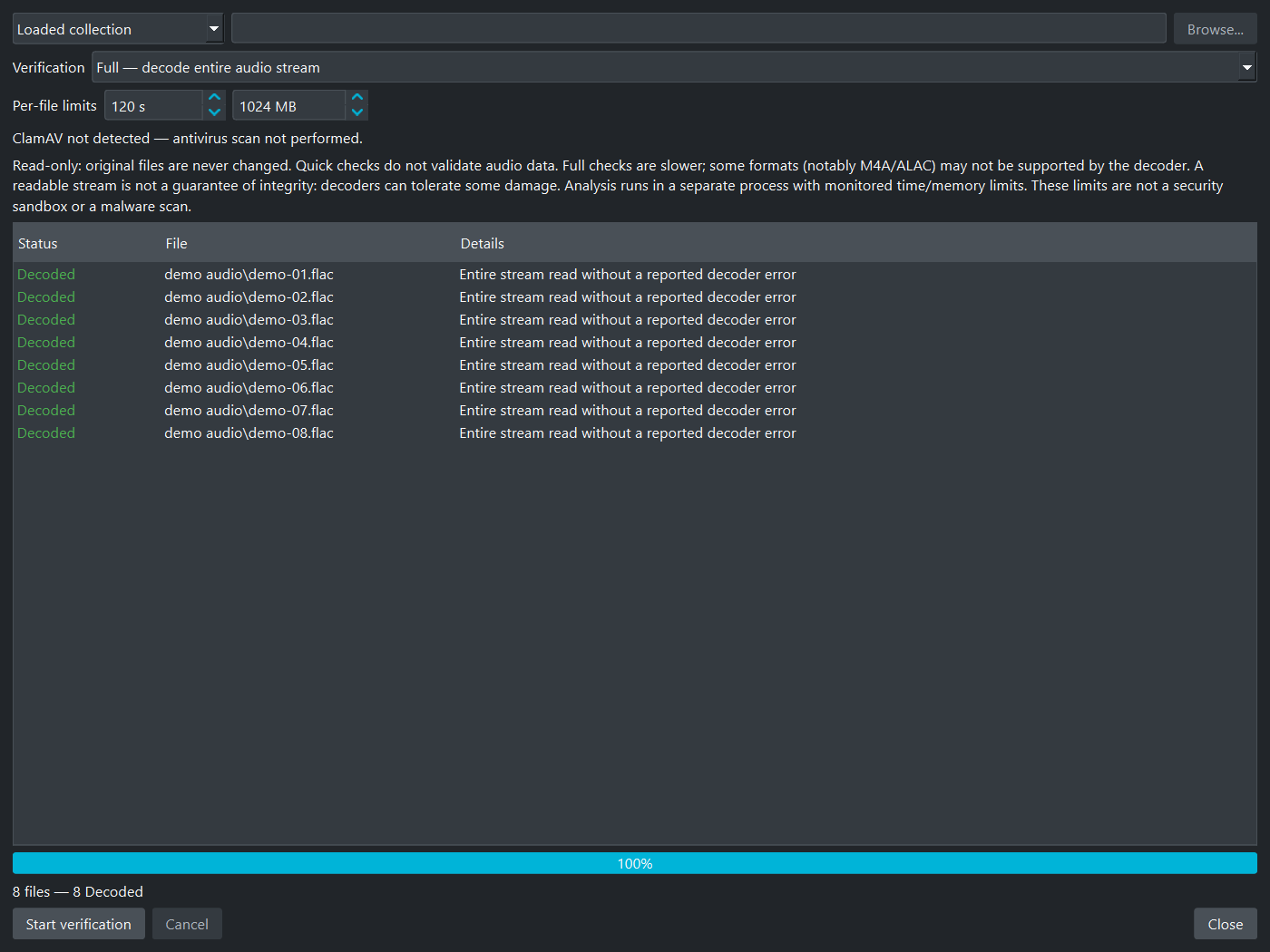
Tools > Verify audio files... checks the audio of the loaded collection, or of any folder and its sub-folders. It never changes a file, and you can cancel it.
Two modes. Quick reads the headers and metadata and decodes nothing. Full (the default) decodes the whole stream and is slower.
| Status | Meaning |
|---|---|
| Headers readable | Quick mode: the headers are fine, the audio was not decoded. |
| Decoded | Full mode: the whole stream was read without a decoder error. |
| Suspect | Empty file, truncated container, incomplete decode or decoder error. |
| Missing, Unreadable | The file is not there, or it cannot be read. |
| Not checked | The decoder does not support the format (M4A and ALAC may not be), or the check hit a limit or crashed. This is not a pass. |
Each file is checked in a separate process, with a time limit and a memory limit that you can change. A stream that decodes is not proof that the file is intact: some decoders tolerate damage.
ClamAV and antivirus
This is an audio check, not an antivirus scan. The panel only says whether ClamAV is installed. It does not run it and does not update its signatures.
Install and update ClamAV yourself, then scan your music folder outside Traktor Bridge:
clamscan --recursive --infected "D:\Music"This command deletes nothing. Exit code 0 means nothing found, 1 a detection, 2 an error. Use the
full path to clamscan if it is not on your PATH.
No antivirus catches everything. Traktor Bridge has no detector for steganography in MP3 files.
Playlist details
Double click a playlist in the main window.
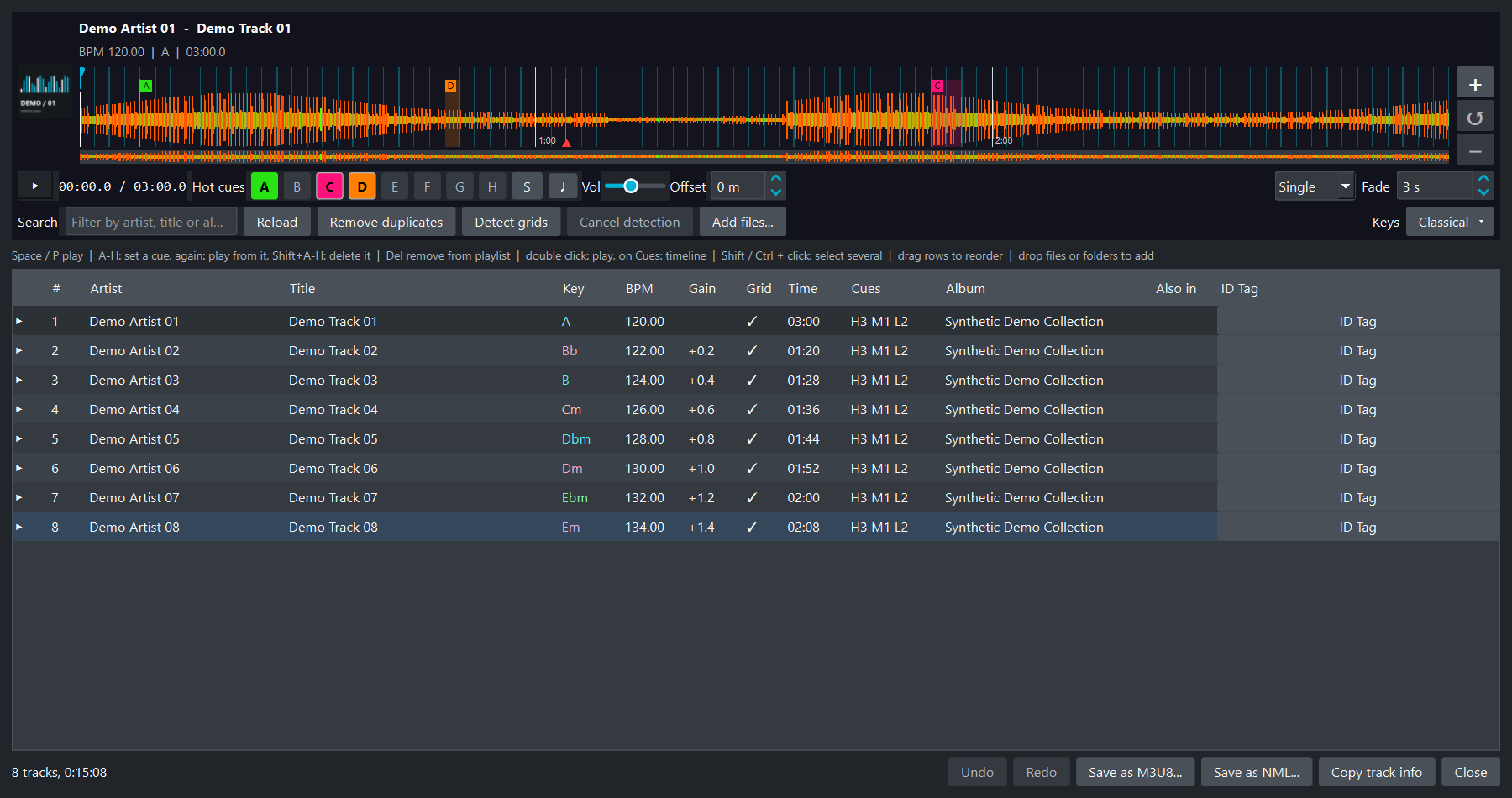
- Player: waveform with the cue markers. Click or drag on it to move the needle without playing, so a cue can be set on a silent track. Continue mode plays the list with a crossfade.
- Pads A-H: click a set pad to jump to it, click an empty pad to set a cue at the needle. Ctrl+click deletes. Right click opens a menu: a 1, 2, 4 or 8 beat loop at the needle, or remove the cue.
- Keys A-H set a hot cue at the needle (playing or not). Pressed again, they jump to the cue and play from it. Shift+key deletes it. Typing in a text field is not affected.
- Move a cue: drag its letter (hot cue) or its triangle (memory cue) on the waveform, in real time. Shift snaps to the beat grid, and so does the S button (or the S key) for every move. Esc, or releasing the mouse far outside the waveform, puts the cue back.
- Zoom: Ctrl+wheel zooms the waveform in high resolution, down to a 500 ms window. The bar under it scrubs and moves the zoom window. A white line marks every minute.
- List: click a header to sort (click # to go back to the playlist order), type to filter, Shift+click selects a range and Ctrl+click single tracks. Drag rows to reorder (in playlist order, without a filter), or use Alt+Up and Alt+Down. Del removes the selected tracks from the playlist. Missing files show in red.
- Keys column: classical, Open Key or Camelot (the Keys button), coloured on the Camelot wheel.
- Also in: counts the other loaded playlists that hold the same track (same id or same path). Hover it for their names, click the header to sort by it. With one track selected, the names show under the list.
- Undo and Redo (Ctrl+Z and Ctrl+Y, or the buttons) step through reorders, removals, added files, ID Tag applications and cue or grid edits.
- Buttons: Reload drops the edits made since the window opened, Remove duplicates keeps the copy with the lowest playlist number, Detect grids (see Beat grid and metronome), Add files, Save as M3U8, Save as NML (with the cues) and Copy track info.
- Double click a row to play it, double click its Cues cell for the timeline (Ctrl+T). The ID Tag button at the end of a row opens the ID Tag editor (Ctrl+I).
- New playlist: File > New playlist makes an empty one. Drop audio files or folders on its list, or use Add files. To keep everything, use a project: a playlist made by hand is lost when the collection is reloaded.
The whole window works from the keyboard. Tab goes from the player to the filter, the list and the buttons. Up and Down choose a track, Enter plays it. Ctrl+F goes to the filter, and Esc there empties it.
Changes made here (order, removed tracks, cues) are part of the next export. They are not written back to your DJ software.
Cue timeline
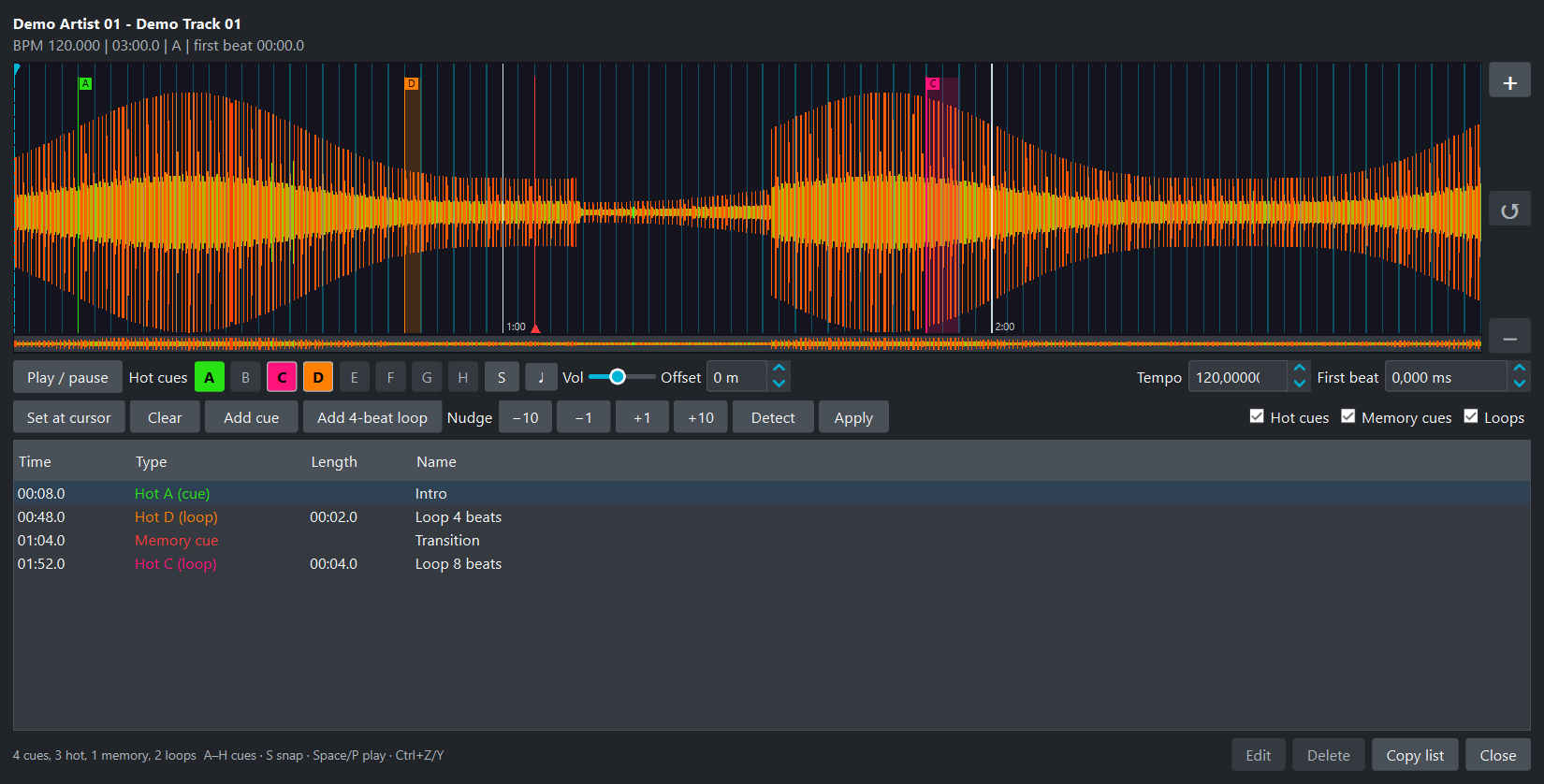
Every cue of the track on its waveform, with the grid anchor dashed. Filter hot cues, memory cues and loops. Click the waveform to listen from there.
Edit (or a double click on the list) changes the time, the name, the slot (memory or hot A-H) and the loop length. Add cue and Add 4-beat loop place a cue at the needle. The loop takes the first free hot slot, or a memory slot when the 8 are taken. Copy list puts the cue list in the clipboard as text.
Keys A-H, right click on a pad (1, 2, 4 or 8 beat loops) and drag work as in the player. Space plays and Del deletes. A double click on the waveform adds a cue. Ctrl+Z and Ctrl+Y undo and redo any cue change.
Beat grid and metronome
Detecting a grid
Detect grids in the playlist window finds the tempo and the first beat. It analyses the selected tracks, or the tracks without a grid when nothing is selected. It asks before it starts.
A reliable result replaces the BPM and the first beat. Unreliable results are skipped, and so are tracks you edited during the analysis. Errors name the files. Cancel detection applies nothing. One Ctrl+Z undoes the whole batch.
A result is reliable when the pulse stands out clearly and the tempo is the same in every part of the track. A live recording whose tempo drifts is never reliable, and neither is a track without a steady beat. A quiet or sparse track can be correct and still be skipped: use Detect in the cue timeline, which shows you the numbers and lets you decide.
In the cue timeline, Detect (Ctrl+D) does the same for one track and asks you to confirm, with a warning when the result is unreliable.
Detection assumes a constant tempo. It finds an audible pulse, which is not always the first beat of a bar. Always check the result against the waveform and the metronome.
Editing a grid
In the cue timeline, type the Tempo and the First beat (in ms) and press Apply. Set at cursor puts the first beat at the needle, Clear removes the grid.
The Nudge buttons move the first beat by -10, -1, +1 or +10 ms. Alt+Left and Alt+Right do 1 ms, with Shift 10 ms. You can also drag the first beat marker on the waveform (Esc cancels).
Changing the grid does not move existing cues. Projects, NML and rekordbox XML keep the edited timing. On the CDJ, beat times are written in whole milliseconds and the BPM to hundredths.
Metronome
The metronome button sits next to S in the player and in the timeline. It plays a click on every beat, stronger on the first beat of each bar. It needs a BPM and a first beat.
Vol sets the click volume, independent of the track. Offset shifts the click from -250 to +250 ms: positive delays it, negative advances it, to make up for your audio device.
The click follows playback, seeks and loops, and is muted during crossfades. The device latency still affects how it sounds, so judge the grid by ear on your own output.
ID Tag editor
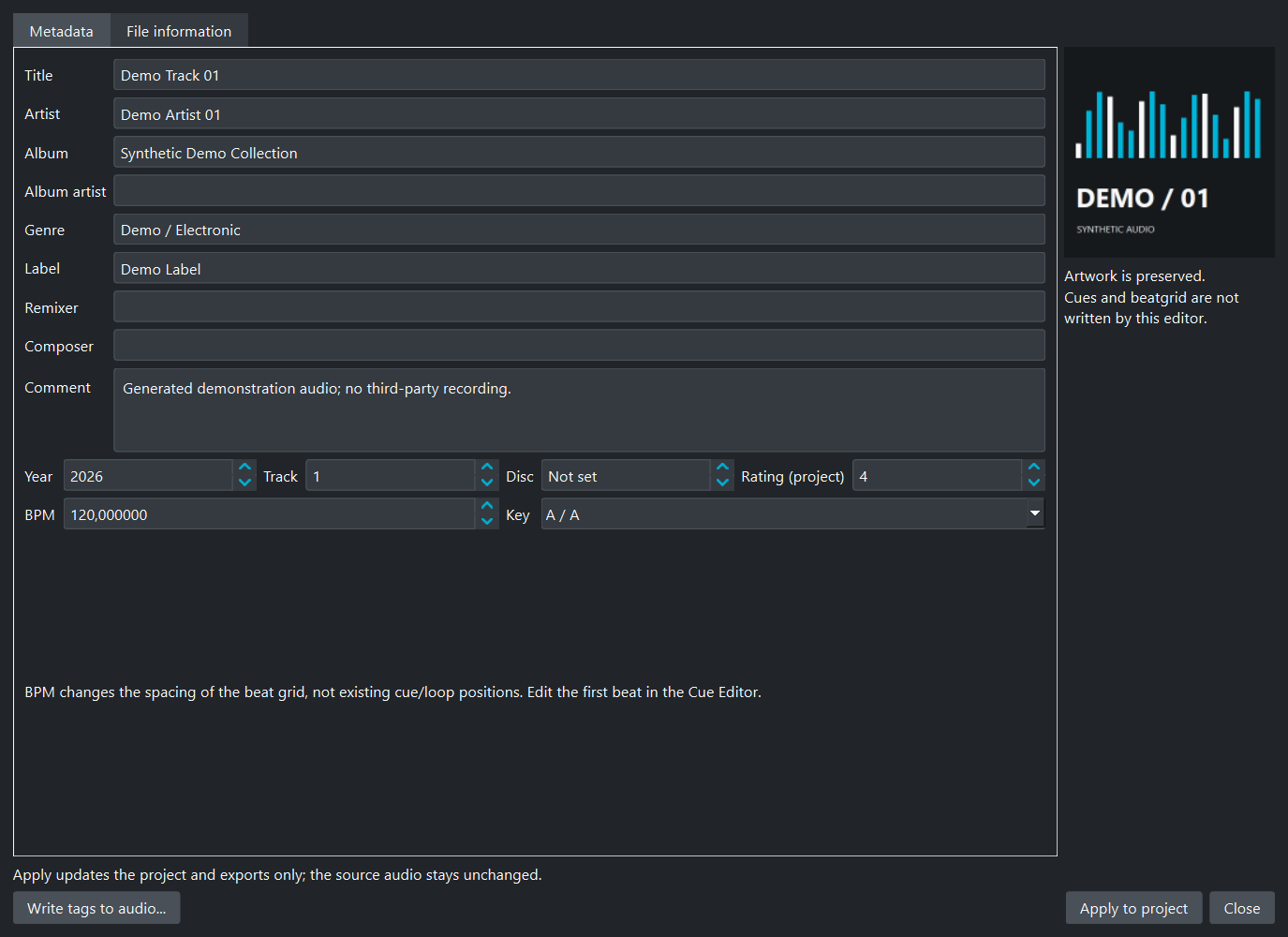
The ID Tag button at the end of a row (Ctrl+I) edits the metadata of a track: title, artist, album, album artist, genre, label, remixer, composer, comment, year, track, disc, rating, BPM and key. A second tab shows the file information, and the artwork is on the side.
There are two ways to save.
- Apply to project changes the project and the exports. The audio file is not touched.
- Write tags to audio... is a separate action. It asks for confirmation and writes the displayed metadata into the audio file. Stop its preview first.
The write goes through a checked temporary copy. The first backup is kept next to the file, named
after it with .tb-tags.bak added. Artwork and unrelated DJ data are preserved. Empty
fields clear the matching tags. Rating stays in the project.
Undo and Reload cannot reverse a write to an audio file. Cues and beat grids are not written by this editor. A BPM change moves the spacing of the grid, not the existing cues.
Projects
File > Save the project (Ctrl+S, Save the project as with Ctrl+Shift+S) writes your work in one JSON file: playlists and folders, track order, metadata, file paths, cues and loops, beat grids and the export settings.
File > Open project / collection (Ctrl+O) brings it back, with files that moved looked up in your music folder.
The title bar shows a * when something is not saved. The program asks before replacing or closing unsaved work. Save before you reload the collection.
Menus
| Menu | Items |
|---|---|
| File | Open project / collection, New playlist, Open a music folder, Open a CDJ USB key, Save the project, Save the project as, Convert, Exit |
| Tools | Reload, Check collection, Verify audio files, Verify an export, Backup, Format a USB drive (FAT32), Eject the output drive |
| Options | Preferences |
| Help | View log, Usage, About |
Help > Usage (F1) opens the help inside the program.
Quit is blocked while the program is writing, analysing, decoding waveforms or scanning a folder. Wait for the end, or use the Cancel button of the operation. Closing the window does not cancel a job. Do not unplug a key before the end of the write and the safe eject.
Options
Options > Preferences (Ctrl+,).
| Tab | Setting |
|---|---|
| Export | default format, key notation, copy audio, verify the copy (SHA-256) |
| CDJ | analysis processes (Auto uses up to 8, more rarely helps), cache size and Clear analysis cache |
| Player | waveform colours (RGB, Blue, IR), crossfade length, preview volume |
| Application | load the last collection on start, ask before quitting, log level |
Shortcuts
Main window
| Ctrl+O | open a project or a collection |
| Ctrl+Shift+O | open a music folder |
| Ctrl+Shift+K | open a CDJ USB key |
| Ctrl+N | new playlist |
| Ctrl+S / Ctrl+Shift+S | save the project / save it as |
| Ctrl+Return | convert |
| Ctrl+Q | quit |
| Ctrl+R | reload |
| Ctrl+K | check collection, relocate missing files |
| Ctrl+Shift+V | verify an export |
| Ctrl+E | eject the output drive |
| Ctrl+, | preferences |
| Ctrl+L | log |
| F1 | usage |
Playlist details
| Space / P | play / pause |
| Enter | play the selected track |
| Ctrl+F | filter |
| Del | remove the selected tracks from the playlist |
| Alt+Up / Alt+Down | move the selected tracks (no sort, no filter) |
| Ctrl+Left / Ctrl+Right | back or forward 5 seconds |
| Ctrl+I | ID Tag of the current track |
| Ctrl+T | cue timeline of the current track |
| Ctrl+Shift+D | remove duplicates |
| A - H | set a hot cue at the needle, again: play from it, Shift: delete |
| S | snap on or off |
| Ctrl+Z / Ctrl+Y | undo / redo |
| Esc | cancel a cue being dragged |
Cue timeline
| Space / P | play / pause |
| A - H | set a hot cue at the needle, again: play from it, Shift: delete |
| Del | delete the selected cue |
| Ctrl+D | detect the tempo and the first beat |
| Alt+Left / Alt+Right | move the first beat by 1 ms (Shift: 10 ms) |
| S / Ctrl+B | snap on or off |
| Ctrl+Z / Ctrl+Y | undo / redo a cue or grid change |
| Esc | cancel a cue or the first beat being dragged |
Command line
For scripts, without the window:
start /wait TraktorBridge.exe --export "D:\Traktor\collection.nml" E:\
start /wait TraktorBridge.exe --export collection.nml D:\out --format "Rekordbox XML" --music D:\Music
start /wait TraktorBridge.exe --verify E:\
Formats: CDJ/USB (default), Rekordbox XML, M3U,
Traktor NML. The whole collection is exported. The report goes to
traktor_bridge.log and the exit code is 0 when nothing failed.
When the key already holds playlists, --keep (the default) adds the export to them and
--replace overwrites the key. --help prints the usage. An option the program does
not know is refused with exit code 2, and so are --keep, --replace,
--format and --music without --export.
--verify checks an export against its checksums. It exits with 0 for an exact match and
with 1 when a file is damaged, missing or modified.
start /wait makes the prompt wait for the end, because the program has no console of
its own. From source: python main.py --export ....
What maps to what
| Traktor | CDJ / rekordbox |
|---|---|
| Hot cue 1-8 | hot cue A-H |
| Cue without hot cue slot | memory cue |
| Loop | loop (hot or memory), same length |
| Load marker | memory cue |
| Grid marker + BPM | beatgrid, bar starts on the marker |
| Fade in / fade out | kept in XML and NML, not on CDJ keys |
| Key | key (C, Db ... Bm), shown in the notation you choose |
| Ranking | rating 0-5 stars |
| Colour | track colour (red, orange, yellow, green, blue, purple, pink) |
Privacy and safety
Your audio, playlists, cues, metadata and analysis stay on your computer. Nothing is uploaded. There is no telemetry, no account and no automatic log sharing. Loading, editing, analysis, backup and export work offline.
This website counts visits. The program does not. The count is anonymous: no cookie, no IP address stored. It shows which pages are read, from which site people come, which country (guessed from the time zone of the browser), and how many click a download button or a link that leaves the site. A visitor is a one-way hash that changes every day, so nobody can be followed from one day to the next. The data is deleted after 400 days.
Links to my websites open in your browser. The log can contain paths and track names: read it before you send it to me. Antivirus tools and cloud-synced folders have their own privacy settings.
The source code is public, so you can check all of this.
The checks in this guide protect your files, they do not make an export bulletproof. A power cut or a failing drive can still damage a key, and a matching checksum does not tell you a file is safe. Test the key on a player before a gig.
The packaged program checks its own native modules when it starts. This is not publisher signing. The XML readers refuse declared entities and external references.
Troubleshooting
| Symptom | What to do |
|---|---|
| The end of the export lists damaged files | The key or the port is failing: export again to the same place (only those files are rewritten), try another port or key. |
| Verify an export reports modified Pioneer files | A player probably updated them, see After CDJ use. Back up the key before exporting to it again. |
| Traktor Bridge says files were changed or damaged and will not start | The program folder is not the one that was built: a file was altered, removed, or left over from an older version. Run the installer again, it replaces the whole program folder. If the message lists files marked unexpected, an older copy left them: delete those files from the runtime\traktor_bridge folder and start again. For the portable version, the clean way is to unzip it to a new folder, not over an old one. |
| Playlists of an earlier export are missing on the player | Up to 3.5.1 every export wrote a new database, so earlier playlists were no longer listed although their audio stayed on the key. From 3.5.2 an export asks to keep them. Export the missing playlists again and choose Keep them and add this export. |
| The player does not show the new playlists on a key made by rekordbox | The key also holds exportExt.pdb and exportLibrary.db, which an export leaves as they are. A player that reads those files instead may not show them. Test the key on your player. |
| A playlist is empty on the player | None of its files was found when you exported, so up to 3.5.1 it was written empty. From 3.5.2 such a playlist is left out and named in the result. Set the music folder or use Tools > Check collection, then export it again. |
| Player shows NO DISK | The key is NTFS: reformat it FAT32 or exFAT. |
| Player sees the key but no playlist | PIONEER is not at the root of the key: export to the key itself, not to a sub-folder. |
| Tracks missing from the export | Their files were not found: set the music folder or use Tools > Check collection. The log (Ctrl+L) lists them. |
| Flat waveforms | M4A / AAC in the portable build: not decoded yet. Other formats: the file could not be read, see the log. |
| Audio check says Not checked | The format is not supported by the decoder, or the file hit a time or memory limit. See Audio check. |
| Old cues or waveforms after a change | Options > Preferences > CDJ > Clear analysis cache, then export again. |
| The program will not quit | A job is running. Wait, or use its Cancel button. |
| The collection won't open | Close Traktor first, it may be writing the file. |
For anything else, open an issue on GitHub with the log and the player model.
Changes in 3.5.2
3.5.2 changes one thing for CDJ keys and fixes several problems. Exports of ordinary tracks are otherwise unchanged: playlists, cues, grids and keys are written as before.
- An export to a key no longer removes the playlists already on it. The window lists them and asks to
keep them or replace everything, see CDJ keys. The old database is copied first as
export.pdb.tb-bak. On the command line,--keepis the default and--replaceoverwrites. - File > Open a CDJ USB key (Ctrl+Shift+K) loads the playlists of a key like a collection, cues and beat grids included. It never writes to the key.
- A track that stays on the key keeps its analysis files, so a key made by rekordbox keeps its phrases and
the colour of its cues. Two different songs with the same name both stay (
name (2)), in the CDJ export and in Copy audio of the M3U8, NML and rekordbox XML exports. A track whose audio did not reach the key is left out of the database and named in the errors. - ID Tag no longer changes what you did not touch: a full date, the total of a track number, or a key or a tempo written in another notation. Only the fields that differ from the file are written, and a file that already holds the values is left alone.
- One odd track no longer stops the whole export: a very long comment, a rating or colour out of range, a title with a broken character. Each track is brought into the range the format can hold, and your session is not changed. A file or folder called like a Windows device (CON, NUL, AUX...) gets a leading underscore.
- A file that Windows holds for a moment (an antivirus scan, the indexer) no longer stops an export: the
step is tried again for about two seconds. A collection with a broken character reference such as
�still opens, and a failed write leaves no.tmpfile. - Detect grids accepts what is right. On real music the batch detection judged almost every track unreliable and skipped it, although the tempo it found was correct. It now looks at how clearly the pulse stands out and whether the tempo holds over the whole track, see Beat grid and metronome.
- Exporting again to a key a player has used no longer shows an error. A CDJ rewrites the analysis files of the tracks it plays. The program keeps those files as they are and says how many were changed since. A playlist none of whose files can be found is no longer written empty: it is left out and named in the result.
TraktorBridge.exe --helpprints the usage, and an option the program does not know is refused with exit code 2 instead of opening the window.
Changes in 3.5.1
3.5.1 is a fix release. Exports are unchanged.
- A project, or a collection from another program, with a damaged value (a list that is not a list,
inf,nanor a number far too large) no longer stops the load with an internal error. The value is dropped, or the file is refused with a message that names the problem. - A rekordbox or VirtualDJ file that declares an unknown text encoding is refused with a message.
- A file or folder name with a superscript digit no longer aborts File > Open a music folder.
- Restoring a ZIP backup that is incomplete, or made with a ZIP version that cannot be read, is refused with a message and writes nothing.
- Exporting twice to the same key no longer reports
export.pdbas different from what was written.
Changes in 3.5
- Tools menu: Reload, Check collection, Verify audio files, Verify an export, Backup, Format a USB drive and Eject.
- Backup: save, verify and restore ZIP backups, with a
.zip.sha256file. - Verify audio files: Quick and Full modes, ClamAV detection only.
- Format a USB key as FAT32 for the players, and eject it safely after the export.
- Verify the copy (SHA-256, on by default): the key is read back from the drive and compared, and the files at fault are listed. The database and analysis files are checked before they are published.
- After CDJ use, Pioneer files changed by the player are reported as modified, not as damaged.
--verifyexits with 1 for them. - Faster copy to a USB key (the next file is read while the previous one is written). Tracks already on the key are skipped, and a new or moved cue replaces the old one.
- Hot cues carry the colour of their slot on the CDJ (the 3.4 colours were all green), loops work as hot loops.
- Playlist editor: Shift and Ctrl+click for several tracks, drag reordering, Remove duplicates, Undo and Redo, the Also in column, Save as M3U8 and Save as NML.
- Keys A-H set and play hot cues. Cues are moved by dragging their letter on the waveform, S toggles snap, Esc cancels a drag. Right click on a pad makes a 1, 2, 4 or 8 beat loop.
- Cue editor: Add 4-beat loop, Space, Del, double click to add. Waveforms zoom down to 500 ms, with a scrub bar and minute lines.
- Detect grids finds the tempo and the first beat, for a track or a selection, with one Undo for the batch.
- Grid editing with nudges, and a metronome with its own volume and offset.
- ID Tag editor: Apply to project, or Write tags to audio with a
.tb-tags.bakbackup. - File > Save the project and Open project / collection: playlists, order, paths, cues and settings in one JSON file.
- Privacy: everything stays local, no telemetry. Quit is blocked while the program writes, analyses or scans.
- Fixes: analysis files of two tracks can no longer overwrite each other, changing a hot cue colour refreshes the analysis cache, and track durations no longer cut off after 99 minutes.
Changes in 3.4
- Hot cues carry a colour on the CDJ (cue blue, load aqua, loop green; a colour from the source goes to the nearest of the 8).
- A folder of music is a source: each folder is a playlist, title, artist, BPM and key from the tags.
- New playlist, with files or folders dropped in, and Save as M3U8.
- The source code is public on GitHub, under the same PolyForm Noncommercial license.
Changes in 3.1
- Checksums written with every export, Verify an export and
--verify. - Verify after export reads the whole key back and rewrites the copies that differ.
- CDJ exports of more than 7000 tracks no longer fail.
- Loading can be cancelled, and the missing files are counted without freezing the window.
- Playlist details stay fluid on playlists of several thousand tracks.
- Less memory used by waveforms, the analysis cache survives an interrupted export.
Changes in 3.0
- Rewritten from scratch, for a USB export the CDJ-2000NXS2 loads and plays.
- New sources: VirtualDJ and Serato DJ.
- Artwork of AIFF files found (it lives in an ID3 chunk inside the file).
- CDJ export built and tested against a key rekordbox wrote for the same tracks, then validated on a CDJ-2000NXS2.
- Faster analysis and export.
- Keys, cue slots and imported rekordbox XML fixed (hot cues were read as memory cues, durations were 1000 times too short).
- Del removes a track in playlist details, and edits made there are exported.
- Command line export, portable Windows build.
- Copies to a USB key one file at a time, with speed and time left.
- The experimental "Rekordbox Database" export is gone. Use Rekordbox XML, which rekordbox can import.
Author
Benoit Saint-Moulin is a Belgian multi-faceted artist, DJ, producer, and founder of the electronic music micro-festival "Green Mayday". Clearly inspired by the Belgian electronic music scene, he travels through melodic and sometimes brutal musical universes while ensuring a rigorous selection of tracks.
The adventure began in the 80s with vinyls and his father's 4-track recordings. Quickly passionate about electronic music, he bought a Commodore 64 to learn music creation and started playing at local parties combining vinyl turntables and cassette player. As an active member of the Amiga demoscene, he developed his skills in digital creation, combining music and visual arts. As part of the original Arkaos team, he contributed to democratizing VJing and the beginnings of video mapping. This pioneering work led to collaborations including visual effects for Jean-Michel Jarre, prototypes for the Nintendo Dolphin, and work with artists like Jean-Marc Lederman (Front242), and projects with Moby, Moloko, St Germain through SONY music and PIAS records.
As someone working in VJing and audiovisual production, I often needed to move between different software ecosystems. I prefer Traktor for organizing music, but was missing a tool for the nights I have to play on CDJ setups. Traktor Bridge is that tool, developed during my free time and offered free of charge to the DJs facing the same problem.
Legal
License. PolyForm Noncommercial 1.0.0: free for personal, educational and any other noncommercial use, modification included. Commercial use requires prior authorization from the author, ask through the GitHub repository. Copies must keep the license and the copyright notice.
A non-commercial project. Traktor Bridge is made by one person in his free time. It is not a company product and there is no support contract. The source code is public on GitHub: everyone is free to read it and check what the program does.
No warranty, no liability. Tested, but provided as is, without warranty of any kind. I am not responsible for any loss of data (collections, music files, cues, playlists, the content of a USB key), for a key a player refuses to read, or for any other damage resulting from the use of the program. Formatting a key erases it. Keep backups of your original data and test your key on a player before playing out.
Trademarks. Pioneer DJ, rekordbox and CDJ are trademarks of AlphaTheta Corporation. Native Instruments and Traktor are trademarks of Native Instruments GmbH. VirtualDJ is a registered trademark of Atomix Productions Inc. Serato and Serato DJ are registered trademarks of Serato Limited. Mixxx is the name of the Mixxx open source project. All other trademarks belong to their respective owners. Traktor Bridge is an independent tool, not affiliated with or endorsed by any of them, written for interoperability.
Thanks to Deep Symmetry (crate-digger, beat-link) for documenting the rekordbox formats, and to the openboxxx project. Their research is what made it possible to write Traktor Bridge from scratch.